
-
Coxygen Content Material
-
Cardano Smart Contract development
-
Technical documentation
-
Aiken and Lucid
-
Author: Banele Nhlapo
-
Date: 2 May 2024
Introduction
Welcome, in this tutorial we will start off by learning Lucid which is one of the off-chain languages used to develop dApps. We will walk through on how to connect to a wallet, make simple transactions like sending Ada from one wallet to another, and send minted tokens.
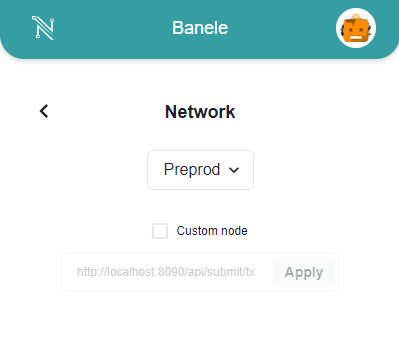
The first thing we will need for this tutorial is to have our Nami wallet enabled. If you haven’t done that go ahead and install it. After installing the wallet you need to set the network to preprod in order for us to be able run tests.
Click on the icon at the top right, then click on settings, click network, and select preprod.
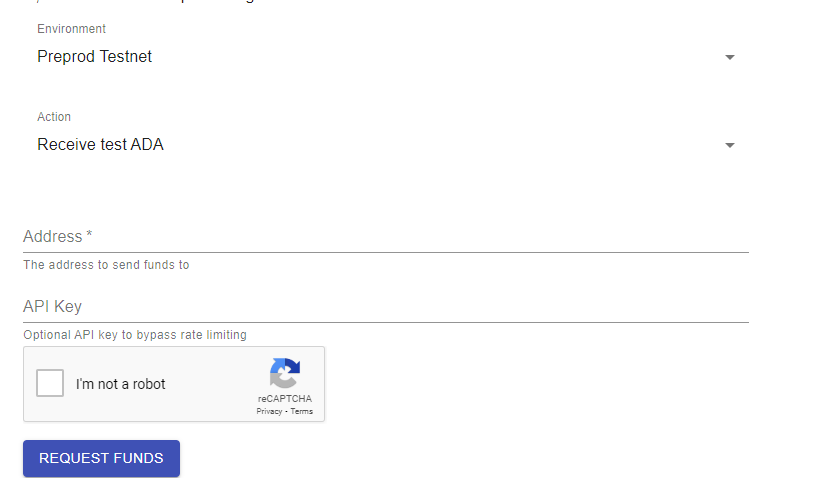
Another thing we need before we start coding is to get some test Ada, for us to be able to make transactions. Get test Ada here
We also need a Blockfrost API for us to be able to make transactions. Create Blockfrost API here
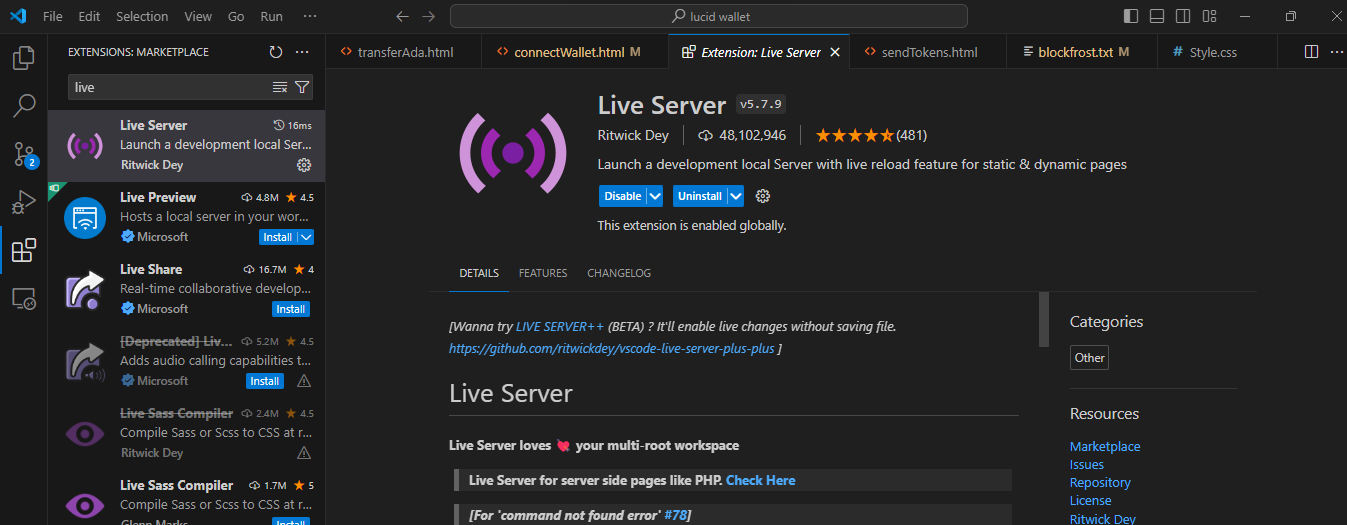
If you haven’t installed vs code, go ahead and install it, then go to the extension tap to install an extension called “live server”. We will need to run it for us to be able to test our website. After installing it on your bottom right you will see a button called “Go live” click on it once you have created your HTML file.
What is off-chain code?
Off-chain code: Off-chain code, on the other hand, runs outside the blockchain. It is often used for tasks such as interacting with users through graphical interfaces, querying data from external sources, and performing computations that do not need to be verified on the blockchain itself.
Connect Wallet
Let’s go ahead and connect to our Nami wallet.
First, we need to create our interface which is just going to be a button to connect to the wallet for now.
Click here to get the CSS file (style.css) in the GitHub account
<!DOCTYPE html>
<html lang="en">
<head>
    <meta charset="UTF-8">
    <meta name="viewport" content="width=device-width, initial-scale=1.0">
    <title>Document</title>

    <link rel="stylesheet" href="Style.css">

</head>
<body>
    <div class="head">
    <img src="coxygen.png" id="connect">
    <h1>Connect to a Nami wallet using Lucid</h1>
</div>
    <div class="form2">
        <p id="pconnect">Written by: Banele Nhlapo</p>
        <h1 id="status">
            Status: Not Connected
        </h1>

        <button>
            Connect Wallet
        </button>

    </div>
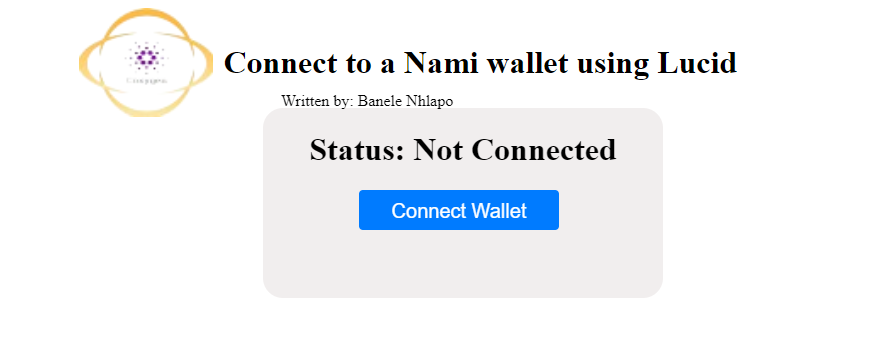
Next, we need to import Lucid from the web.
<script type="module">
     import { Lucid,Blockfrost,fromText} from "https://unpkg.com/lucid-cardano/web/mod.js"
Next, let's write the code to connect to the wallet.
 const status = document.getElementById('status');
        const button = document.getElementById('button');

        let lucid;

        async function connectWallet() {
            if (typeof window.cardano == 'undefined' || typeof window.cardano.nami == 'undefined') {
                return;
            }

            try {
                const api = await window.cardano.nami.enable();
                lucid = await Lucid.new();
                lucid.selectWallet(api);
Now that we have the code for that. We want to display the total amount of Utxos that are in the wallet.
This line of code gets the Utxos in the wallet:
const balanceHex = await lucid.wallet.getUtxos();//get the wallet balance
Now we want to add up all the Utxos, and display the total amount in the button, and update the status. If there are no Utxos we want to display an error saying that there are no Utxos found.
  if (balanceHex.length > 0) {
                    const firstUtxo = balanceHex[1];

                    // Sum up the lovelace amounts of all UTXOs
                    const totalBalanceLovelace = balanceHex.reduce((sum, utxo) => sum + BigInt(utxo.assets.lovelace), BigInt(0));
                        const lovelacePerAda = BigInt(1_000_000);
                        const balanceADA = totalBalanceLovelace / lovelacePerAda;// covert lovelace to ada

                        status.innerHTML = "Status: Connected"// update status to connected
                        button.innerHTML = `Balance:${balanceADA} ADA`;// show balance in the connect button
                        sendButton.disabled = false; // Enable the send button after connecting

                } else {

                    status.innerHTML = "Error: No Utxo found in the balance information.";
                }
                } catch (error) {
                console.error("Error connecting to wallet:", error);
                const status = document.getElementById('status');
                status.innerHTML = "Error connecting to wallet.";
            }
        }
Notice that we wrapped the code around try-catch statements, we want to catch the errors that might occur.
Let's call our function when the button is clicked.
 button.onclick = connectWallet;//button to connect the wallet

  </script>
</body>
</html>
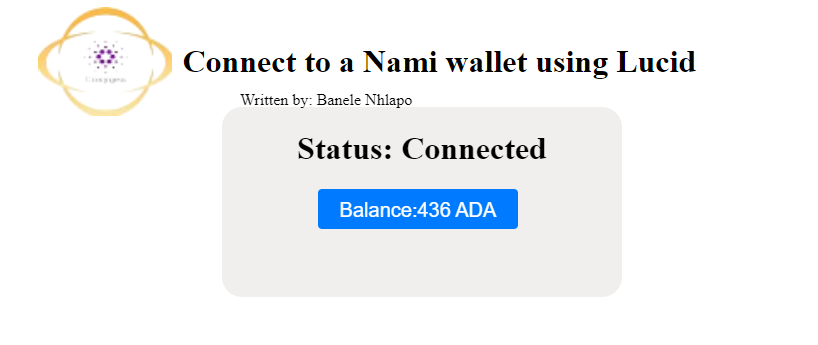
Thats how you connect to a Nami wallet.
source code
Written by: Banele Nhlapo
email address: nhlapob78@gmail.com
Transfer ADA
How to transfer Ada from one wallet to another?
First, we need to create our interface which will have an input field for the destination address, an input field for the Ada amount, and a button to make the transaction.
Click here to get the CSS file (style.css) in the GitHub account
<!DOCTYPE html>
<html lang="en">
<head>
    <meta charset="UTF-8">
    <meta name="viewport" content="width=device-width, initial-scale=1.0">
    <title>Document</title>
    <link rel="stylesheet" href="Style.css">
</head>
<body>
    <div class="head">
        <img src="coxygen.png">
        <h1>Transfer Ada from one wallet to another using Lucid</h1>
    </div>
    <div class="form">
        <h1 id="status">
            Status:
        </h1>

        <div>
            <label for="destinationAddress">Destination Address:</label>
            <input type="text" id="destinationAddress" placeholder="Enter destination address">
        </div>

        <div>
            <label for="ada amount">Amount in ADA:</label>
            <input type="text" id="AdaAmount" placeholder="Enter ADA amount">
        </div>

        <button id="sendButton" >
            Send ADA
        </button>
        <p>Written by: Banele Nhlapo</p>
    </div>
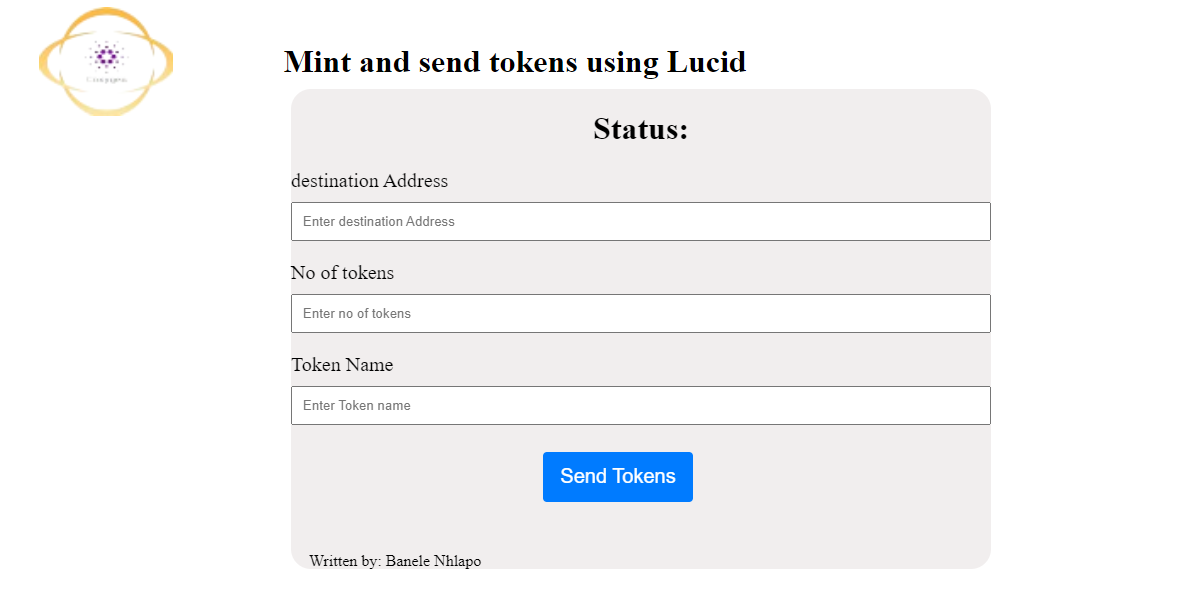
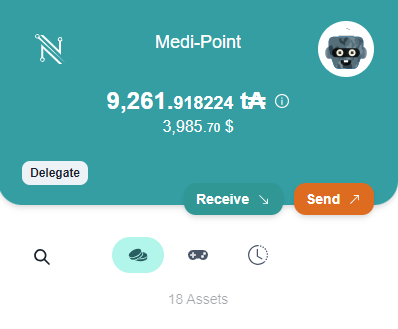
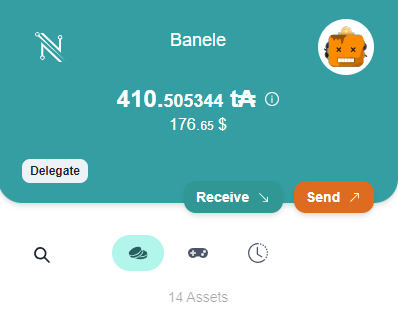
You will need two accounts in your wallet to test the transaction. The first one will be loaded with test ADA. We will be transferring to the second one.Both accounts set to prepod.
Let's go ahead and write our JavaScript.
The next step is to import Lucid from the web and get our elements from HTML.
 <script type="module">
     import { Lucid,Blockfrost,fromText} from "https://unpkg.com/lucid-cardano/web/mod.js"

        const status = document.getElementById('status');
        const sendButton = document.getElementById('sendButton');
        const destinationAddressInput = document.getElementById('destinationAddress');
        const AdaAmount=document.getElementById('AdaAmount');
Let's go ahead and get our Blockfrost API for us to be able to make transactions. Notice that the Blockfrost ID is fetched from a separate file for security purposes. You can go ahead and create the file called “blockfrost.txt” and store your Blockfrost ID there.
  async function sendTransaction() {

            const fileName = 'blockfrost.txt'; // Specify the file name here


            const response = await fetch(fileName);
        if (!response.ok) {
            throw new Error('Network response was not ok');
        }
        const blockfrostAPI = await response.text();


        const lucid = await Lucid.new(
            new Blockfrost(
                "https://cardano-preprod.blockfrost.io/api/v0",
                blockfrostAPI // Use the fetched data to initialize Lucid
            ),
            "Preprod"
        );
  const destinationAddress = destinationAddressInput.value.trim();
  const AdaAmountinput=AdaAmount.value.trim();

  if (!destinationAddress) {
    alert('Please enter a valid destination address.');
    return;
  }
  if (!AdaAmountinput) {
    alert('Please enter amount in ADA.');
    return;
  }
We also went ahead and wrote if statements to check if our input fields are empty or not.
Then,we must connect to the wallet.
try {

    //connect wallet
    const api = await window.cardano.nami.enable();
                lucid.selectWallet(api);
Then we want to convert Lovelace into Ada when making the transaction.
const send=AdaAmountinput*1000000;
Now, let’s write the code to make the transaction.
 //make transactions using wallet
const tx = await lucid.newTx()
  .payToAddress(destinationAddress, { lovelace: send })//specify the destination address and the amount in lovelace
  .complete();

const signedTx = await tx.sign().complete();// sign the transaction
const txHash = await signedTx.submit();// submit the transaction

console.log('Transaction submission result:', txHash);

    status.innerHTML = 'Status: Transaction Sent';//update to show that the transaction was completed succesfully

  } catch (error) {
    console.error('Error sending transaction:', error);

        status.innerHTML = 'Error sending transaction. Please check your wallet and try again.';

}
}

 sendButton.onclick = sendTransaction;//button to make transactions


    </script>
</body>
</html>
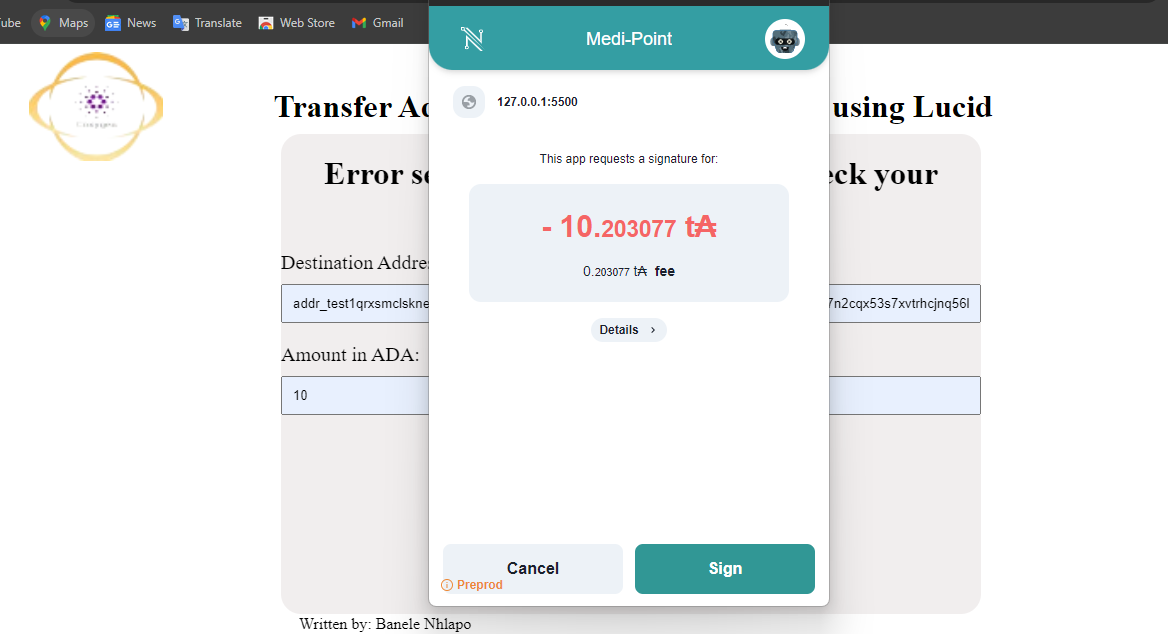
Thats how to make a transaction using Lucid.
source code
Written by: Banele Nhlapo
email address: nhlapob78@gmail.com
Send Tokens
First, we need to create our interface which will have an input field for the destination address, an input field for no of tokens, an input field for Token name, and a button to make the transaction.
Click here to get the CSS file (style.css) in the GitHub account
<!DOCTYPE html>
<html lang="en">
<head>
    <meta charset="UTF-8">
    <meta name="viewport" content="width=device-width, initial-scale=1.0">
    <title>Document</title>
    <link rel="stylesheet" href="Style.css">

</head>
<body>
    <div class="head">
        <img src="coxygen.png">
        <h1>Mint and send tokens using Lucid</h1>
    </div>

    <div class="form">

        <h1 id="status">Status:</h1>
        <div>
            <label for="destinationAddress">destination Address</label>
            <input type="text" id="destinationAddress" placeholder="Enter destination Address">
        </div>

        <div>
            <label for="NoOfTokens">No of tokens</label>
            <input type="text" id="NoOfTokens" placeholder="Enter no of tokens">
        </div>

        <div>
            <label for="TokenName">Token Name</label>
            <input type="text" id="TokenName" placeholder="Enter Token name">

        </div>
        <button id="sendButton">Send Tokens</button>
        <p id="Tokens">Written by: Banele Nhlapo</p>
    </div>
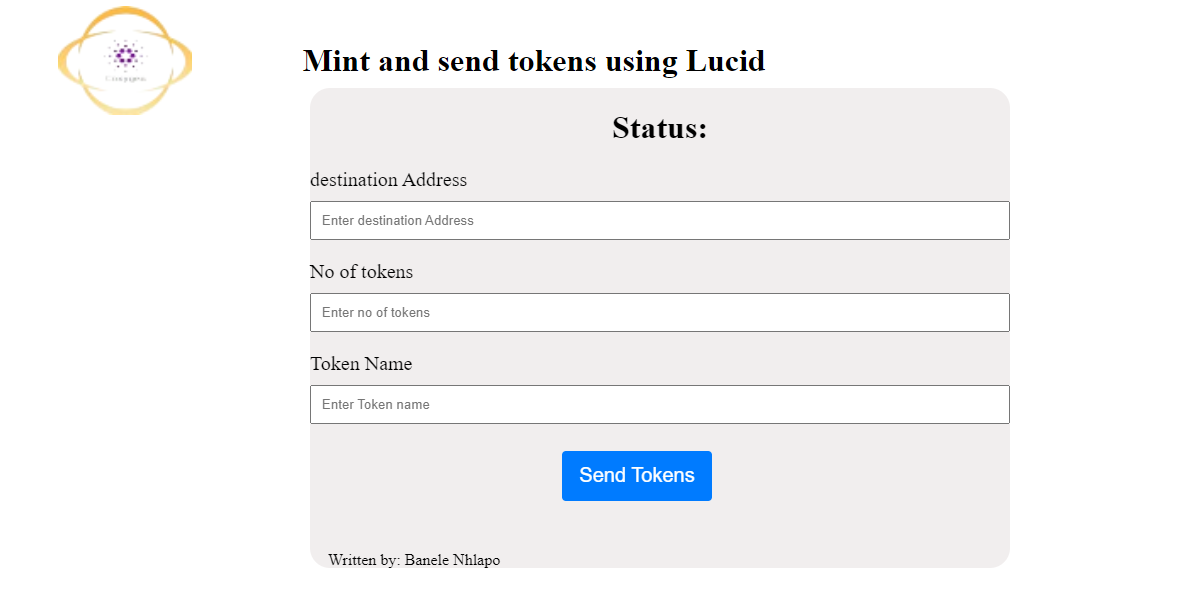
You will need two accounts in your wallet to test the transaction. The first one will be loaded with test ADA. We will be transferring to the second one.Both accounts set to prepod.
Let's go ahead and write our JavaScript.
The next step is to import Lucid from the web and get our elements from HTML.
  <script type="module">
        const status=document.getElementById('status');
        const destinationAddressInput=document.getElementById('destinationAddress');
        const NoOfTokens=document.getElementById('NoOfTokens');
        const TokenName=document.getElementById('TokenName');
        const sendButton=document.getElementById('senButton');

        import {Lucid,Blockfrost,fromText} from "https://unpkg.com/lucid-cardano/web/mod.js";
Let's go ahead and get our Blockfrost API for us to be able to make transactions. Notice that the Blockfrost ID is fetched from a separate file for security purposes. You can go ahead and create the file called “blockfrost.txt” and store your Blockfrost ID there.
 async function sendTransaction(){
            const fileName='blockfrost.txt';

            const response=await fetch(fileName);
            if(!response.ok){
                throw new Error("network response was not okay");
            }
            const blockfrostAPI=await response.text();

            const lucid=await Lucid.new(
                new Blockfrost(
                    "https://cardano-preprod.blockfrost.io/api/v0",
                    blockfrostAPI
                ),
                "Preprod"
            );

            const destinationAddress=destinationAddressInput.value.trim();
            const NoOfTokensinput=NoOfTokens.value.trim();
            const TokenNameinput=TokenName.value.trim();

            if(!destinationAddress){
                alert("Please enter a destination address");
                return;
            }

            if(!NoOfTokensinput){
                alert("Please No of Tokens");
                return;
            }

            if(!TokenNameinput){
                alert("Please enter token name");
                return;
            }
We also went ahead and wrote if statements to check if our input fields are empty or not.
Then,we must connect to the wallet:
        try{

                const api= await window.cardano.nami.enable();
                lucid.selectWallet(api);
This line of code gets the wallet address details which we are going to use in the minting policy. Specifically, we want to get the public key hash of the wallet address.
const {paymentCredential} =lucid.utils.getAddressDetails(await lucid.wallet.address());
Now, let’s write our minting policy. We use a native script time-locking policy with our wallet as a required signer.
 const mintingPolicy= lucid.utils.nativeScriptFromJson(
                    {
                        type:"all",
                        scripts: [
                            {type: "sig", keyHash:paymentCredential.hash},
                            {
                                type:"before",
                                slot:lucid.utils.unixTimeToSlot(Date.now()+1000000),
                            },
                        ],
                    },
                );
Then, we get the policy id from the minting policy script:
const policyId= lucid.utils.mintingPolicyToId(mintingPolicy);
Now, let’s write the code to mint tokens:
  const unit=policyId+ fromText(TokenNameinput);

                const tx=await lucid.newTx()
                .mintAssets({[unit]: NoOfTokensinput})
                .payToAddress(destinationAddress, {[unit] :NoOfTokensinput})
                .validTo(Date.now()+200000)
                .attachMintingPolicy(mintingPolicy)
                .complete();

                const signedTx =await tx.sign().complete();

                const txhash=await signedTx.submit();

                status.innerHTML='Status: Token minted succssfully';

            }catch(error){
                console.error('Error sending transaction', error);
                status.innerHTML="Error minting or sending token";

            }
        }
  sendButton.onclick=sendTransaction;
    </script>
</body>
</html>
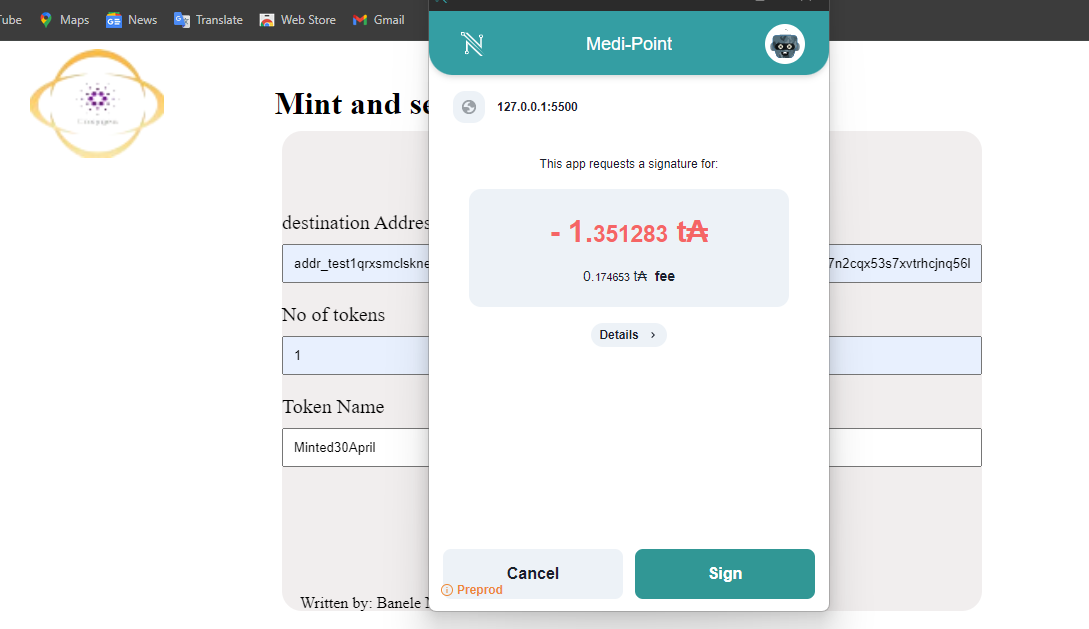
Thats how you mint tokens.
source code
Written by: Banele Nhlapo
email address: nhlapob78@gmail.com
MatchingCode
Now that we have seen a snippet of how to make transactions in Cardano, we can go ahead and create our first smart contract using Aiken as the on-chain code and Lucid as the off-chain code. Our smart contract will lock funds in the contract, we will have a beneficiary to unlock the funds, and we will have a redeemer to unlock the funds.
What is On-chain and off-chain code.
On-chain code: This refers to the code that is executed directly on the blockchain. Allows developers to define the logic of their smart contracts directly on the blockchain, enabling secure and trustless execution.
Off-chain code: Off-chain code, on the other hand, runs outside the blockchain. It is often used for tasks such as interacting with users through graphical interfaces, querying data from external sources, and performing computations that do not need to be verified on the blockchain itself.
On-chain code using Aiken
If you have not installed Aiken on your computer refer to Aiken installation guide.
Let's create a new Aiken project
Open the command prompt then run this:
aiken new aiken-lang/matching
cd matching
code.// open VS code
You can see a bunch of files in the folder. Now we want to create our validator. We are going to do that in our validators folder. So go to that folder and create a new file called “matching.ak”. A validator is where we are going to verify our transaction. We are going to verify our signature and the transaction data in there.
Before we create our validator function, we need to define our custom types which it is going to be our Datum and Redeemer.
What is a datum?
A datum is a piece of data attached to the transaction output that contains relevant logic of the smart contract. A datum is set when locking funds in the smart contract. In this example, our datum will contain the owner verificationKeyHash, beneficiary verificationKeyHash, and password. The verificationKeyHash will be used to require a signature from the owner or beneficiary when unlocking the funds. The password set when locking the funds would have to match with the password of the redeemer when unlocking the funds.
type Datum {
owner: VerificationKeyHash,
beneficary: VerificationKeyHash,
password: ByteArray,
}
type VerificationKeyHash =
Hash<Blake2b_224, VerificationKey>
What is a redeemer?
A redeemer contains all the logic necessary to verify the transaction. The redeemer will be used to unlock the funds. The redeemer password has to match with the password set in the datum in this case.
type Redeemer {
msg
}
Let's go ahead and define our validator
validator {
fn match(datum: Datum, redeemer: Redeemer, context: ScriptContext) -> Bool {
when context.purpose is {
Spend(_) -> or {
list.has(context.transaction.extra_signatories, datum.owner),
and {
redeemer.msg == datum.password,
list.has(context.transaction.extra_signatories, datum.beneficary),
},
}
_ -> F
  }
 }
}
Notice that we have ScriptContext in our validator.
ScriptContext refers to the information available when validating a smart contract on a blockchain. It has two fields, ScriptPurpose and ScriptTransaction. ScriptPurpose is where you get the script purpose, which is divided into spending, minting, Rewarding StakingCredentail, etc. In this case, we are using spend because we just spend some funds. ScriptTransaction contains all information about the transaction, such as the transaction output, inputs, and signatures.
We did not import our dependencies at the top, let's go ahead and do that. So, there is the full code containing our dependencies.
use aiken/hash.{Blake2b_224, Hash}
use aiken/list
use aiken/transaction.{ScriptContext, Spend}
use aiken/transaction/credential.{VerificationKey}
type Datum {
owner: VerificationKeyHash,
beneficary: VerificationKeyHash,
password: ByteArray,
}
type Redeemer {
    msg: ByteArray,
}
type VerificationKeyHash =
Hash<Blake2b_224, VerificationKey>
validator {
fn match(datum: Datum, redeemer: Redeemer, context: ScriptContext) -> Bool {
when context.purpose is {
Spend(_) -> or {
list.has(context.transaction.extra_signatories, datum.owner),
and {
redeemer.msg == datum.password,
list.has(context.transaction.extra_signatories, datum.beneficary),
},
}
_ -> False
}
}
}
Once that is done we can go ahead and run Aiken check in the command prompt which will check for errors.
If there are no errors, we can run Aiken build which will generate a file called “plutus.json”. We will use this file in the off-chain code so that we can interact with the on-chain code.
Written by: Banele Nhlapo
email address: nhlapob78@gmail.com
Off-Chain code using Lucid
Now that we have our on-chain code ready let's go ahead and write our off-chain code using Lucid.
-
In this section I will show you how to lock Ada in the smart contract using Lucid.
-
I will also show you how to unlock the Ada from the smart contract.
Locking funds in the contract
In the root folder of matching create a file called “match_lock.html”. This is where is are going to lock the funds in the contract. Then we must create our simple interface.
Click here to get the CSS file (style.css) in the GitHub account
<!DOCTYPE html>
<html lang="en">
<head>
    <meta charset="UTF-8">
    <meta name="viewport" content="width=device-width, initial-scale=1.0">
    <title>Document</title>
    <link rel="stylesheet" href="Style.css">

</head>
<body>
  <div class="head">
    <img src="coxygen.png">
    <h1>Lock Ada in smart contract Demo</h1>
</div>

    <div class="form">
      <h1>Lock ada </h1>
      <div id="msg"></div>
    <div class="input">
      <label>Amount Ada</label>
      <input type="text" id="ada" placeholder="Please enter ada">
    </div>
    <div class="input">
      <label>destination address</label>
      <input type="text" id="address" placeholder="Please enter destination address">
    </div>
    <div class="input">
      <label>Secrete code</label>
        <input type="text" id="password" placeholder="Please enter Secrete code">
      </div>

    <div id="button">
      <button id="lock">Lock ada</button>
    </div>

    <a href="#" id="txHash"></a>

    <p id="Tokens">Written by: Banele Nhlapo</p>
  </div>
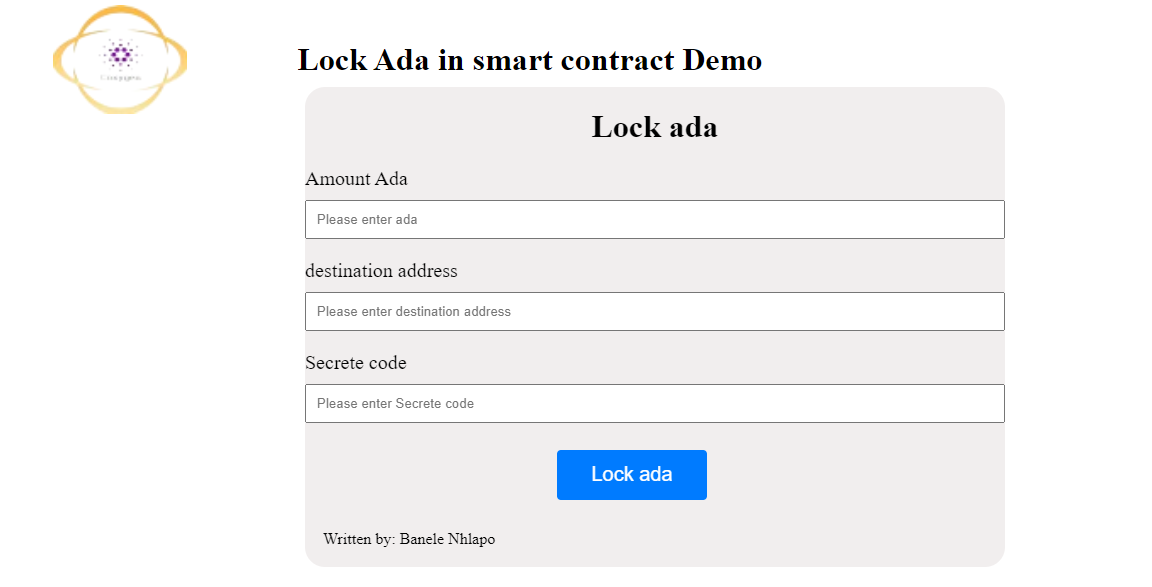
The next thing is to import lucid from the web
    <script type="module">

        const lockfund=document.getElementById("lock");
        const lockada=document.getElementById("ada");
        const msg=document.getElementById("msg");
        const address=document.getElementById("address");
        const password=document.getElementById("password");
       const  transactionId= document.getElementById("txHash")


      import {
          Blockfrost,
          C,
          Constr,
          Data,
          Lucid,
          fromHex,
          toHex,
          utf8ToHex,

        }  from "https://unpkg.com/lucid-cardano@0.8.3/web/mod.js"
        import * as cbor from "https://deno.land/x/cbor@v1.4.1/index.js";
Next, we'll need to read the validator from the blueprint (plutus.json) we generated earlier. We'll also need to convert it to a format that Lucid understands. This is done by serializing the validator and then converting it to a hexadecimal text string as shown below:
  async function fetchValidatorData(){
        const response =await fetch("plutus.json");
        return await response.text();
      }

      async function readValidator(){
        const validatorData= await fetchValidatorData();
        const validator= JSON.parse(validatorData).validators[0];
        return {
            type:"PlutusV2",
            script:toHex(cbor.encode(fromHex(validator.compiledCode))),
        };
      }

      const validator=await readValidator();
Now, let us define our function, set up our Blockfrost API, and connect to the wallet. We will be using Nami Wallet for this. If you haven’t installed go ahead and install it and set your network to preprod and then get some test ADA.
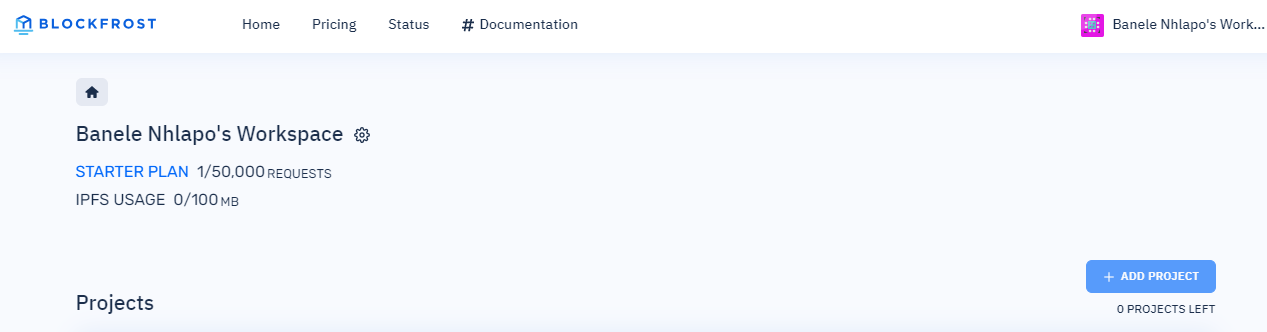
You will need two accounts in your wallet to make the transaction. The first one will be loaded with the test ADA and used to lock the ADA. The second will be used to redeem the ADA. Both accounts are set to prepod.
 async function lock1(){
        const fileName = 'blockfrost.txt'; // Specify the file name here
       const response = await fetch(fileName);
       if (!response.ok) {
       throw new Error('Network response was not ok');
          }
          const blockfrostAPI= await response.text();

   const lucid = await Lucid.new(
       new Blockfrost(
      "https://cardano-preprod.blockfrost.io/api/v0",
       blockfrostAPI // Use the fetched data to initialize Lucid
       ) ,
       "Preprod"
        );

        const api = await window.cardano.nami.enable();
      lucid.selectWallet(api);
Notice that I am fetching my blockfrost ID from the ‘blockfrost.txt’ text file., go ahead and create the file and paste your blockfrost ID there.
Next, we will be setting all of our values and sending them to the contract.
const lovelaceInput= lockada.value.trim();
        const destinationAddress=address.value.trim();
        const password1=password.value.trim();

        if(!lovelaceInput){
            msg.innerHTML="please enter ada amount";
            return;
        }

        if(!destinationAddress){
            msg.innerHTML="please enter address";
            return;
        }

        if(!password1){
            msg.innerHTML="please enter password";
            return;
        }

        const lovelace=parseInt(lovelaceInput,10);

        const adaAmount= lovelace * 1000000;

        const ownerPublicKeyHash=(await lucid.utils.getAddressDetails(await lucid.wallet.address())).paymentCredential.hash;

        const beneficiaryPublicKeyHash=(await lucid.utils.getAddressDetails(destinationAddress)).paymentCredential.hash;

        const Datum=Data.Object({
            owner: Data.String,
            beneficiary: Data.String,
            password: Data.String,
        });

        const datum=Data.to({
            owner:ownerPublicKeyHash,
            beneficiary:beneficiaryPublicKeyHash,
            password:utf8ToHex(password1),
        }, Datum);
Now, let us write the code that will make the transaction.
    try{
            const contractAddress=lucid.utils.validatorToAddress(validator);

      const tx =await lucid
     .newTx()
      .payToContract(contractAddress, {inline:datum}, {lovelace:adaAmount})
        .complete();

        const signedTx=await tx.sign().complete();

         const txLock= signedTx.submit();
            msg.innerHTML="ada locked";

            txLock.then(result => {
  transactionId.innerHTML=`transactionId: <br>${result}`;
  transactionId.href=`https://preprod.cardanoscan.io/transaction/${result}`;
}).catch(error => {
  console.error(error);
});
        }catch(error){
          console.error(error)
        }
      }


      lockfund.onclick=lock1;


      </script>

</body>
</html>
This code should lock the funds in the contract.
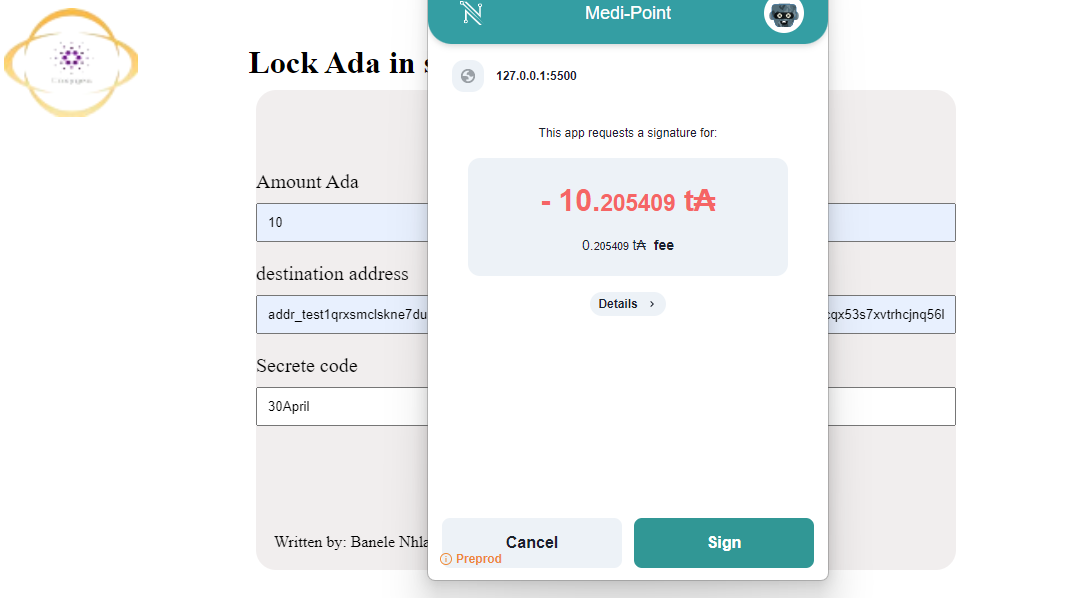
You can inspect the transaction here: cardano scan.
You can copy and paste the transaction ID in the cardano scan website which will be logged once the transaction is successful or you can click on it and it will open the website. Give it some time load.
Written by: Banele Nhlapo
email address: nhlapob78@gmail.com
Unlocking funds from the contract
In the root folder create a file called “match_unlock.html”. This is where is are going to unlock the funds in the contract. Then we must create our simple interface. The next thing is to import lucid from the web, read our validator, set up our Blockfrost API, connect to the wallet just like we did when locking the funds.
Click here to get the CSS file (style.css) in the GitHub account
<!DOCTYPE html>
<html lang="en">
<head>
    <meta charset="UTF-8">
    <meta name="viewport" content="width=device-width, initial-scale=1.0">
    <title>Document</title>
    <link rel="stylesheet" href="Style.css">

</head>
<body>
  <div class="head">
    <img src="coxygen.png">
    <h1>Unlock Ada in smart contract Demo</h1>
</div>
  <div class="form">

    <h1>Unlock ada </h1>
    <div id="msg"></div>
    <div class="input">
      <label>Secrete code</label>
        <input type="text" id="password" placeholder="Please enter Secrete code">
      </div>

    <div class="input">
      <button id="unlock">Unlock ada</button>
    </div>
    <a href="#" id="txHash"></a>

    <p >Written by: Banele Nhlapo</p>
  </div>
    <script type="module">

        const unlockButton=document.getElementById("unlock");

        const msg=document.getElementById("msg");

        const password=document.getElementById("password");
        const  transactionId= document.getElementById("txHash")

      import {
          Blockfrost,
          C,
          Constr,
          Data,
          Lucid,
          fromHex,
          toHex,
          utf8ToHex,

        }  from "https://unpkg.com/lucid-cardano@0.8.3/web/mod.js"
        import * as cbor from "https://deno.land/x/cbor@v1.4.1/index.js";


      async function fetchValidatorData(){
        const response =await fetch("plutus.json");
        return await response.text();
      }

      async function readValidator(){
        const validatorData= await fetchValidatorData();
        const validator= JSON.parse(validatorData).validators[0];
        return {
            type:"PlutusV2",
            script:toHex(cbor.encode(fromHex(validator.compiledCode))),
        };
      }

      const validator=await readValidator();

      async function unlock1(){
        const fileName = 'blockfrost.txt'; // Specify the file name here
          const response = await fetch(fileName);
       if (!response.ok) {
         throw new Error('Network response was not ok');
          }
        const blockfrostAPI = await response.text();


       const lucid = await Lucid.new(
        new Blockfrost(
        "https://cardano-preprod.blockfrost.io/api/v0",
        blockfrostAPI // Use the fetched data to initialize Lucid
       ) ,
       "Preprod"
       );


        const api = await window.cardano.nami.enable();
        lucid.selectWallet(api);
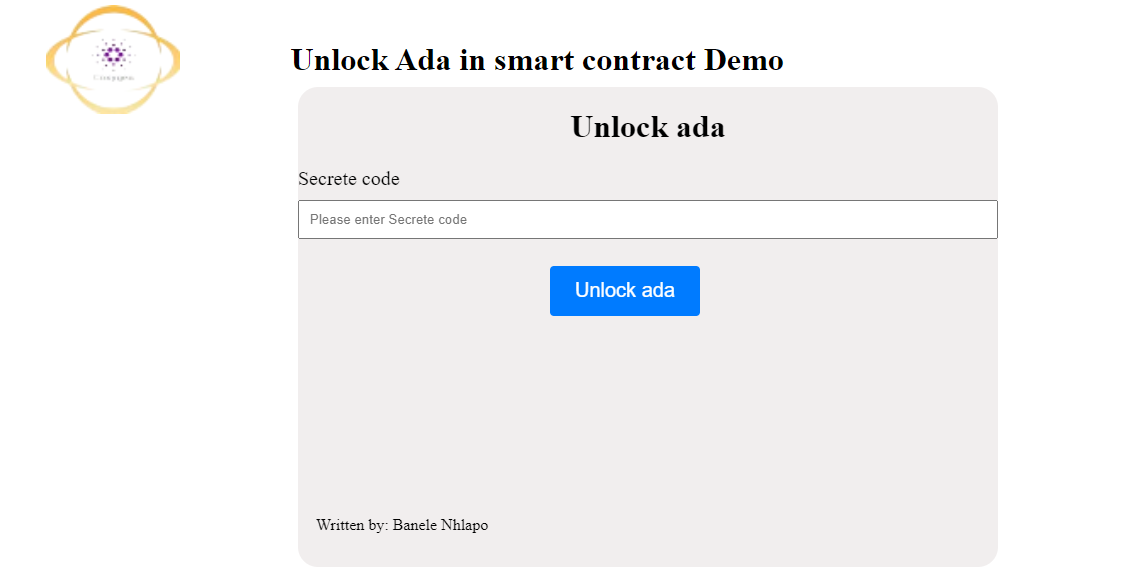
Next, we will set our values and filter out our Utxos sitting in the contract address.
   const passCode=password.value.trim();

        if(!passCode){
            msg.innerHTML="please enter password";
            return;
        }

        const beneficiaryPublicKeyHash=lucid.utils.getAddressDetails(await lucid.wallet.address()).paymentCredential.hash;

        const scriptAddress= lucid.utils.validatorToAddress(validator);// this gets the script address

        // we get all the UTXOs sitting at the script address
        const scriptUtxos=await lucid.utxosAt(scriptAddress);

        const Datum= Data.Object({
            owner:Data.String,// we can pass owner's verification key hash as byte array but also as a string
            beneficiary: Data.String,
            password: Data.String,
        });
         // we filter out all the UTXOs by beneficiary and password
        const utxos=scriptUtxos.filter((utxo) =>{
            let datum=Data.from(utxo.datum, Datum);

            return datum.beneficiary===beneficiaryPublicKeyHash &&
                  datum.password==utf8ToHex(passCode);
        });

        if(utxos.length===0){
            msg.innerHTML="No redeemable utxo found";
        }

        const redeemer=Data.to(new Constr(0, [utf8ToHex(passCode)]));
Next, we will make our transaction.
       try{

            const tx=await lucid
        .newTx()
        .collectFrom(utxos,redeemer)
        .addSigner(await lucid.wallet.address())// this should be beneficiary address
        .attachSpendingValidator(validator)
        .complete();

        const signedTx=await tx
        .sign()
        .complete();

        const txUnlock=  signedTx.submit();


            msg.innerHTML="Ada unlocked";
            txUnlock.then(result => {
               transactionId.innerHTML=`transactionId: <br>${result}`
               transactionId.href=`https://preprod.cardanoscan.io/transaction/${result}`;
             }).catch(error => {
               console.error(error);
             });


        }catch(error){
          console.error(error)
        }
      }

      async function unlock(utxos, {from,using}){

      }

    unlockButton.onclick=unlock1;

      </script>

</body>
</html>
Now, you can check if it works. Switch to the receiving wallet and try to put in the wrong password. From there put in the correct password and see if it works.
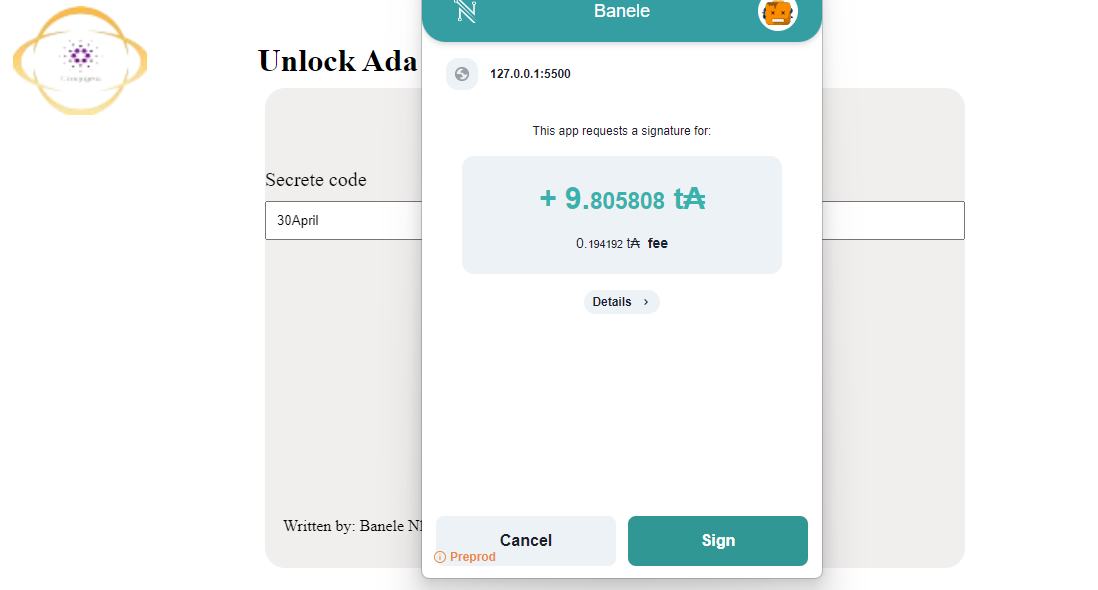
You can inspect the transaction here: cardano scan.
You can copy and paste the transaction ID in the cardano scan website which will be logged once the transaction is successful or you can click on it and it will open the website. Give it some time load.
Hopefully, this is helpful.
source code
Written by: Banele Nhlapo
email address: nhlapob78@gmail.com